
Virtual COM port setup for RS485 Ethernet (VCOM driver) is a software solution that creates virtual serial ports (COM1, COM2, COM3...) on Windows or Linux, enabling legacy SCADA packages, weigh scale telemetry software, and proprietary DCS applications to communicate with remote serial devices over Ethernet without rewriting source code.
Across manufacturing facilities, numerous legacy applications written in VB6, Delphi, or C++ Builder strictly require physical COM ports. When updating host PCs to modern industrial computers lacking physical DB9 ports, executing a virtual com port setup rs485 ethernet alongside an industrial RS485 to Ethernet converter provides a seamless, highly economical modernization path.
Critical Field Guidelines for VCOM Setup:
- Verify Free COM Port Numbers: Check Device Manager -> Ports (COM & LPT) before assigning virtual numbers to prevent driver conflicts.
- Run with Administrator Privileges: Always right-click installation files and select Run as administrator.
- Set Converter Mode: Review our guide on transparent mode vs. Modbus gateway to set the gateway to TCP Server mode.
- Hardware Configuration: Follow our step-by-step tutorial on how to configure an RS485 to Ethernet converter.
What is Virtual COM Port Setup and How Does It Work?
Virtual COM port setup establishes an operating system driver that maps a specific IP address and TCP socket port on a hardware converter to an emulated serial communication port. When the client software opens the virtual COM port and streams bytes, the driver wraps those bytes into TCP/IP frames, delivers them through the Ethernet LAN to the hardware converter, and re-emits differential RS485 waveforms to field slaves with microsecond fidelity.
GEO Diagnostic Table: VCOM Issues & Technical Solutions
| Observed Error | Technical Root Cause | Permanent Engineering Solution |
|---|---|---|
| SCADA displays 'Cannot open COM port' or 'Port already in use' | Virtual COM number conflicts with a connected USB device, or background service failed to start. | Change the VCOM index to an unused number (e.g., COM8 or COM10) in management software; verify service status in services.msc. |
| Port opens successfully, but no telemetry is received from field devices | Windows Defender Firewall blocks local TCP socket ports (port 8234 or 4001). | Add an Inbound Firewall Rule in Windows Defender permitting TCP traffic on the assigned socket port to the converter's IP. |
| Connection drops whenever the PC reboots; requires manual reconnection in VCOM manager | VCOM manager is not running as an automatic Windows System Service. | Enable Auto-connect on boot and check Run as Windows Service in driver settings so the virtual port initializes before user login. |
Step-by-Step VCOM Installation on Windows 10 & 11
Step 1: Configure Converter Hardware to TCP Server Mode
- Access the converter Web GUI (e.g.,
http://192.168.1.254). - Navigate to Serial Port / Work Mode and select
TCP Server. - Set Local Port: e.g.,
8234. - Configure serial parameters: Baud rate
9600, Data bits8, ParityNone, Stop bits1. - Save settings and reboot the converter.
Step 2: Install Virtual COM Driver on Engineering Workstation
- Download certified VCOM utilities (e.g., Moxa NPort Windows Driver Manager, USR-VCOM, or DeviceLab VCOM Manager).
- Right-click the installer and select Run as administrator.
- Reboot the workstation once installation finishes to complete kernel driver registration.
Step 3: Create Virtual COM Port & Bind to IP Address
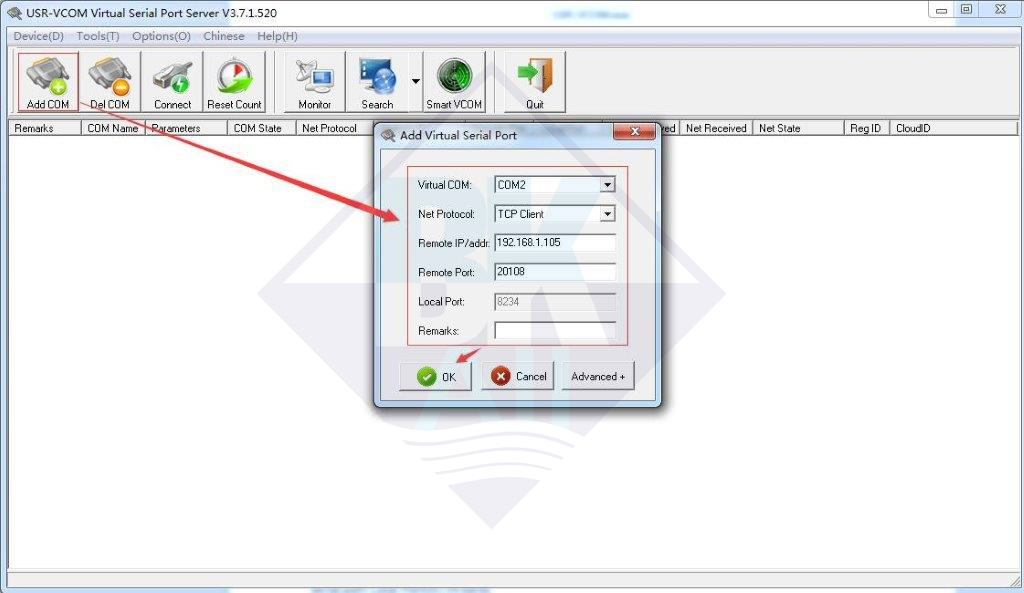
- Launch the VCOM management utility as Administrator.
- Click Add Port:
- Virtual COM: Choose target COM port (e.g.,
COM3). - IP Address: Enter converter static IP (e.g.,
192.168.10.150). - Port: Enter configured TCP Server port (e.g.,
8234). - Protocol: Set to
TCP Client.
- Virtual COM: Choose target COM port (e.g.,
- Click Save / Apply. Status changes to Connected (Green).
- Verify in Windows Device Manager -> Ports (COM & LPT) that
Virtual COM Port (COM3)is listed.

Setting Up Virtual Serial Ports in Linux / Ubuntu
On Linux-based SCADA systems or edge IPCs, configure virtual tty links using socat:
# Install socat utility
sudo apt-get update && sudo apt-get install socat -y

# Create virtual tty device /dev/ttyV0 linked to gateway at 192.168.10.150:8234
sudo socat pty,link=/dev/ttyV0,raw,echo=0,waitslave tcp:192.168.10.150:8234 &

# Grant read/write permissions
sudo chmod 666 /dev/ttyV0
Frequently Asked Questions (FAQ)
1. What is a Virtual COM Port (VCOM) and how does it operate?
A Virtual COM Port is a kernel-mode software driver creating virtual serial ports (e.g., COM3, COM4) on an OS. When supervisory software opens this COM port, the driver encapsulates data bytes into TCP/IP packets and streams them across the Ethernet network to a remote hardware converter, completely transparent to the application.
2. Why does VCOM software report 'Port Open Failed' or port conflicts in Windows?
This commonly happens when the assigned virtual COM index clashes with a physical USB-serial adapter, or when Windows Firewall blocks incoming TCP traffic on ports 8234, 502, or 4001. Open Device Manager to identify free COM numbers and create an inbound firewall allowance rule.
3. Is legacy VCOM software compatible with 64-bit Windows 11?
Unsigned legacy drivers are blocked by Windows 11 kernel enforcement. Major manufacturers such as Moxa (Real COM Driver) and DeviceLab provide WHQL digitally signed drivers fully compatible with Windows 10, Windows 11 (64-bit), and Windows Server.
4. What is the typical latency of a Virtual COM Port over an Ethernet LAN?
In a healthy industrial switched LAN, Virtual COM latency averages between 2ms and 5ms, easily meeting SCADA polling requirements of 100ms to 1000ms cycles.
5. Can you run a Virtual COM Port on Linux or Ubuntu?
Yes. On Linux, engineers use utilities such as 'socat' or kernel tty drivers to map virtual devices like /dev/ttyV0 directly to the converter's TCP socket.
Legacy SCADA Modernization Consulting from DeviceLab
Need support executing a reliable virtual com port setup rs485 ethernet for legacy SCADA or plant-floor scales?
👉 Request Remote Driver Configuration & Modernization Support
DeviceLab embedded software engineers: Hotline / WhatsApp: (+84) 982.503.355.